
Tech Care You • Senior Technology Help
Helping Wendy Feel at Home With Her iPad: A Story About Technology, Confidence, and Independence
An iPad can be so much more than a screen. For an older adult, it can become a favorite magazine, a television, a photo album, a way to talk with family, and a connection to the world. But when passwords, updates, unfamiliar buttons, and changing apps get in the way, that same iPad can quickly become frustrating.
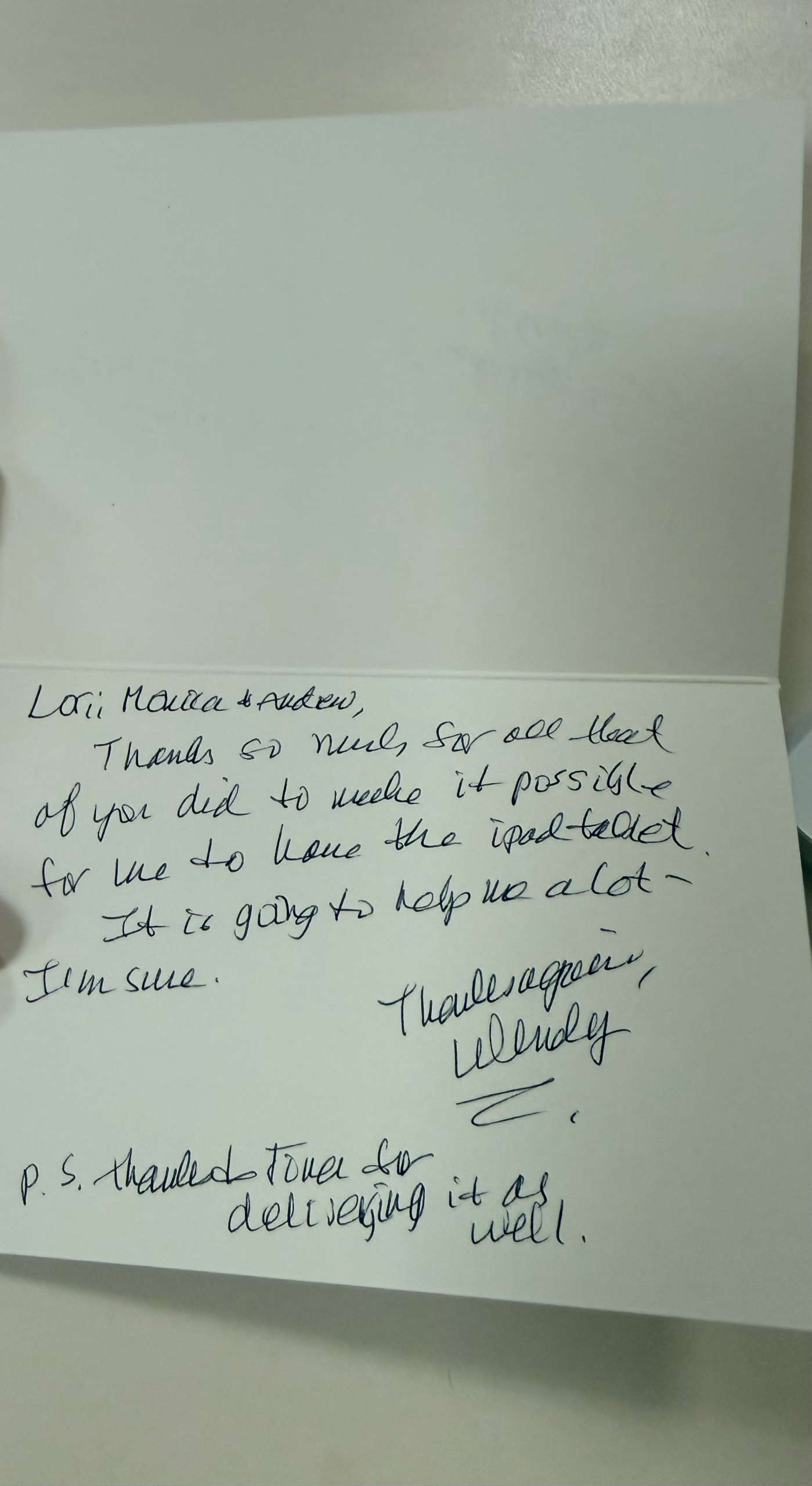
A Visit With Wendy in Stamford, Connecticut
I recently had the pleasure of visiting Wendy, a wonderful client in her late 70s who lives in Stamford, Connecticut. Wendy already had an iPad and knew enough to use some of its basic features, but there were several things she wished were just a little easier.
What I enjoyed about working with Wendy was that her questions were not really about technology for technology's sake. She wanted her iPad to help her do the things she already enjoyed.
She wanted to be able to sit down and read The New Yorker without getting lost trying to find her subscription. She wanted to stream her favorite television shows and movies without wondering which app to open or where she had signed in. And, like so many people, she had accumulated passwords and accounts that had become increasingly difficult to keep track of.
So we sat together and took our time.
Instead of me simply taking the iPad and doing everything for her, we went through each task together. I showed Wendy where things were, why they worked the way they did, and then gave her the opportunity to do the steps herself.
The best moment is not when I can make someone's technology work. It is when they realize, “I can do this myself.”
One of Our Most Important Stops: The Passwords App
One area we spent time on was something that causes frustration for people of every age: passwords.
Instead of trying to remember which password belonged to which account, we talked about using Apple's Passwords app as a more organized place to manage logins.
The Passwords app can keep account credentials together, help identify passwords that may be weak or compromised, and make it easier to find the correct login when it is needed.
For Wendy, the important part was not simply showing her that the app existed. We practiced how to find it, how to recognize the account she was looking for, and how it could help when she needed to sign into something such as a streaming service.
We also talked about security. A saved password does not mean you should give that password—or a verification code—to someone who unexpectedly calls, texts, or emails asking for it.
That combination of convenience and awareness is particularly important for older adults. Technology should make accessing an account easier without making someone less cautious about protecting it.
Then We Got to the Fun Part
Once we had worked through some of the less exciting housekeeping, we could focus on what Wendy actually wanted to enjoy.
We went through how to find and stream some of her favorite television programs and movies. More importantly, we organized things so that she would know where to go the next time she wanted to watch something.
Then we opened The New Yorker.
We practiced getting to the magazine, finding something she wanted to read, and making the experience comfortable on the iPad. Something as simple as knowing where your favorite publication lives and how to make the text comfortable to read can turn a device from something you occasionally tolerate into something you genuinely enjoy using.
Those are the moments I love about providing technology help for seniors. We were not just working on an iPad. We were helping Wendy make the iPad fit naturally into her life.
Does Wendy's Story Remind You of Your Mom or Dad?
Maybe your parent already owns an iPad but only uses a small portion of what it can do. Perhaps passwords cause frustration, streaming services are confusing, or every software update seems to move something they had finally learned. Tech Care You provides patient, one-on-one technology help built around the needs and pace of older adults.
Why Familiar Technology Can Suddenly Feel Unfamiliar
Wendy's experience illustrates something I see often when working with older adults.
Someone may have successfully used an iPad for years. They know where their email is. They know how to look at photos. They have finally learned how to get to their favorite apps.
Then something changes.
An app gets redesigned. A password needs to be updated. A new security message appears. A button moves. The operating system gets an update. Suddenly, something that had become familiar looks different again.
For an adult child, the change may seem small. But for an aging parent who worked hard to learn a particular sequence of steps, even a small change can interrupt the routine they had become comfortable with.
That is why I do not think the answer is simply telling someone, “Don't worry, it is easy.”
A better answer is to sit beside them, explain what changed, connect the new feature to something they already understand, and let them practice until the new version begins to feel familiar too.
And right now, that is particularly relevant because the iPad itself has just taken another big step forward.
iPadOS 27 Is Here — So Let's Make the New Features Useful

Apple has released iPadOS 27, and I think this is a great example of why patient technology education matters.
An update can initially feel like one more thing an older adult has to learn. But looked at another way, some of these new capabilities may actually make an iPad easier and more helpful for a senior once someone shows them how to use the features that matter.
iPadOS 27 includes the new Siri AI experience on compatible iPads, improvements to search, accessibility enhancements, performance improvements, new Apple Intelligence capabilities, and updates across everyday apps.
Siri AI is particularly interesting because compatible iPads can offer a more conversational experience. Instead of always remembering which menu contains something, a user can increasingly start with a natural question or request.
There are also improvements that can be especially relevant to older adults, including enhancements to VoiceOver, Magnifier, Accessibility Reader, Voice Control, search, Photos, Safari and other everyday experiences.
Not every iPad supports every iPadOS 27 or Apple Intelligence feature, so it is important to look at the particular device someone owns. But this is exactly the kind of update that creates an opportunity to sit down with Mom or Dad and ask: “What could we make easier for you?”
10 Helpful iPad Tips for Seniors and Their Families
You do not need to teach a parent every feature on an iPad. Start with the things that can make their own everyday routine easier, safer, or more enjoyable.
Make Text Easier to Read
Adjust text size and display settings so emails, messages, websites, and articles are comfortable to read. Do not assume the default display is the best display for your parent.
Learn the Passwords App
Show your parent where Apple's Passwords app is and practice finding a familiar account together. It can help organize credentials and flag certain password security concerns.
Put Favorite Apps Front and Center
Do not make someone search through several Home Screen pages. Put frequently used apps such as FaceTime, Messages, Photos, Mail, Safari, magazines, and streaming services somewhere easy to recognize.
Make FaceTime Familiar
Practice calling a child or grandchild together. A technology lesson becomes much more meaningful when the result is seeing someone you love.
Explore Magnifier
The iPad can help enlarge small print and other objects. iPadOS 27 also brings additional accessibility improvements that can make Magnifier more useful on supported devices.
Try Accessibility Reader
If reading long articles or other information on screen is difficult, explore Apple's accessibility reading tools. iPadOS 27 includes improvements designed to make content easier to understand and consume.
Explore Siri AI on Compatible iPads
For a senior who would rather ask than navigate through several menus, the new Siri AI experience can be worth exploring. Practice with simple, useful requests related to their actual routine.
Use Search Instead of Hunting
Teach your parent that they do not always have to remember where something is located. Search can help find apps, emails, photos, and other information, and iPadOS 27 includes improvements to search.
Make Entertainment Simple
Set up favorite streaming, music, newspaper, and magazine apps so they are easy to reach. Then let your parent practice opening and using them without assistance.
Practice Scam Awareness
Teach one simple rule: an unexpected message creating urgency deserves caution. Do not give a password or verification code to someone who unexpectedly asks for it. When unsure, stop and verify independently.
Start With What Mom or Dad Actually Wants to Do
Wendy did not wake up one morning wanting to become an iPad expert.
She wanted to read The New Yorker. She wanted to watch the programs she enjoyed. She wanted passwords to be less frustrating.
That distinction matters.
When I work with older adults, I try to start with the person's life and then make the technology fit around it—not the other way around.
If you are helping an aging parent, begin by asking questions like:
- What do you wish were easier on your iPad?
- Which technology problem frustrates you most often?
- Would you like an easier way to see family photos?
- Would you like to FaceTime children or grandchildren more often?
- Do you have trouble remembering or finding passwords?
- Do you enjoy newspapers, magazines, books, television, or music?
- Are there suspicious messages or pop-ups that make you nervous?
- Would larger text or accessibility features make the screen more comfortable?
Those answers tell us what to teach first.
Technology becomes meaningful when it helps an older adult do more of what they already love—with greater confidence and independence.
For Adult Children: You Don't Have to Be the Family Tech Support Department
If Wendy's story sounds familiar, you are certainly not alone.
Adult children frequently become the default technology support person for their parents. A visit that starts with lunch can quickly become a list of questions about an iPad, passwords, email, FaceTime, streaming services, printers, photos, software updates, and suspicious messages.
Of course you want to help.
But there is a difference between quickly fixing something for your parent and having the time to patiently teach it, repeat it, write things down when helpful, and let them practice until they feel comfortable.
That is where Tech Care You comes in.
My goal is not to rush into someone's home, grab their iPad, fix three things, and leave.
I want to sit beside them. I want to understand what is frustrating them. I want to explain it in language that makes sense. And whenever possible, I want them to be the person touching the screen and completing the steps.
Because the real success is what happens after I leave.
When Wendy sits down with her iPad tomorrow, I want her to feel a little more comfortable, a little more independent, and a little less hesitant to explore.
Patient Senior Tech Help in Stamford, Greenwich, Darien, Westport and Beyond
Tech Care You provides personalized technology help for seniors, older adults, families, and senior living communities throughout Fairfield County, Connecticut and Westchester County, New York.
I work with older adults and families in Stamford, Greenwich, Darien, Westport and surrounding Fairfield County communities, as well as communities throughout Westchester County.
If you have been searching for iPad help for seniors, senior tech help in Stamford CT, technology help for aging parents, in-home senior tech support, iPhone help for seniors, or patient computer help for an older adult, Tech Care You provides one-on-one help centered around the individual.
Sessions can include help with iPads, iPhones, Android devices, computers, the Passwords app, email, FaceTime, photos, streaming services, printers, apps, online safety, scam awareness, accessibility settings, Siri AI, and everyday technology questions.
An iPad Can Be a Wonderful Tool for Staying Independent and Connected
I left Wendy's home thinking about how easy it is to measure a technology session by the problems that were fixed.
Passwords organized. Streaming working. Magazine found.
But those were not really the most important results.
The more meaningful result was that Wendy understood her iPad a little better than she did before.
An iPad can be a connection to children and grandchildren. It can be a photo album, library, magazine rack, television, music player, communication tool, and a window to the world.
New technology such as iPadOS 27 will continue to add capabilities. Apps will continue to change. New devices will continue to arrive.
But the goal should remain simple: help people feel confident enough to benefit from it.
Patient Help. Greater Confidence.
Give Your Parent the Gift of Feeling More Confident With Technology
If your mom, dad, grandparent, or another older adult in your life is struggling with an iPad, iPhone, computer, passwords, streaming, email, photos, online safety, or simply keeping up with changing technology, I would love the opportunity to help.
Tech Care You provides calm, personalized, one-on-one technology support that meets older adults where they are and helps them become more comfortable at their own pace.
Call or Text: (848) 992-4599Serving Stamford, Greenwich, Darien, Westport, Fairfield County, Connecticut and Westchester County, New York.
Get Tech Help for My ParentBecause technology should help our parents stay connected, confident, and independent—not leave them feeling frustrated.